RingConn on Android: sync expectations, common issues, and fixes
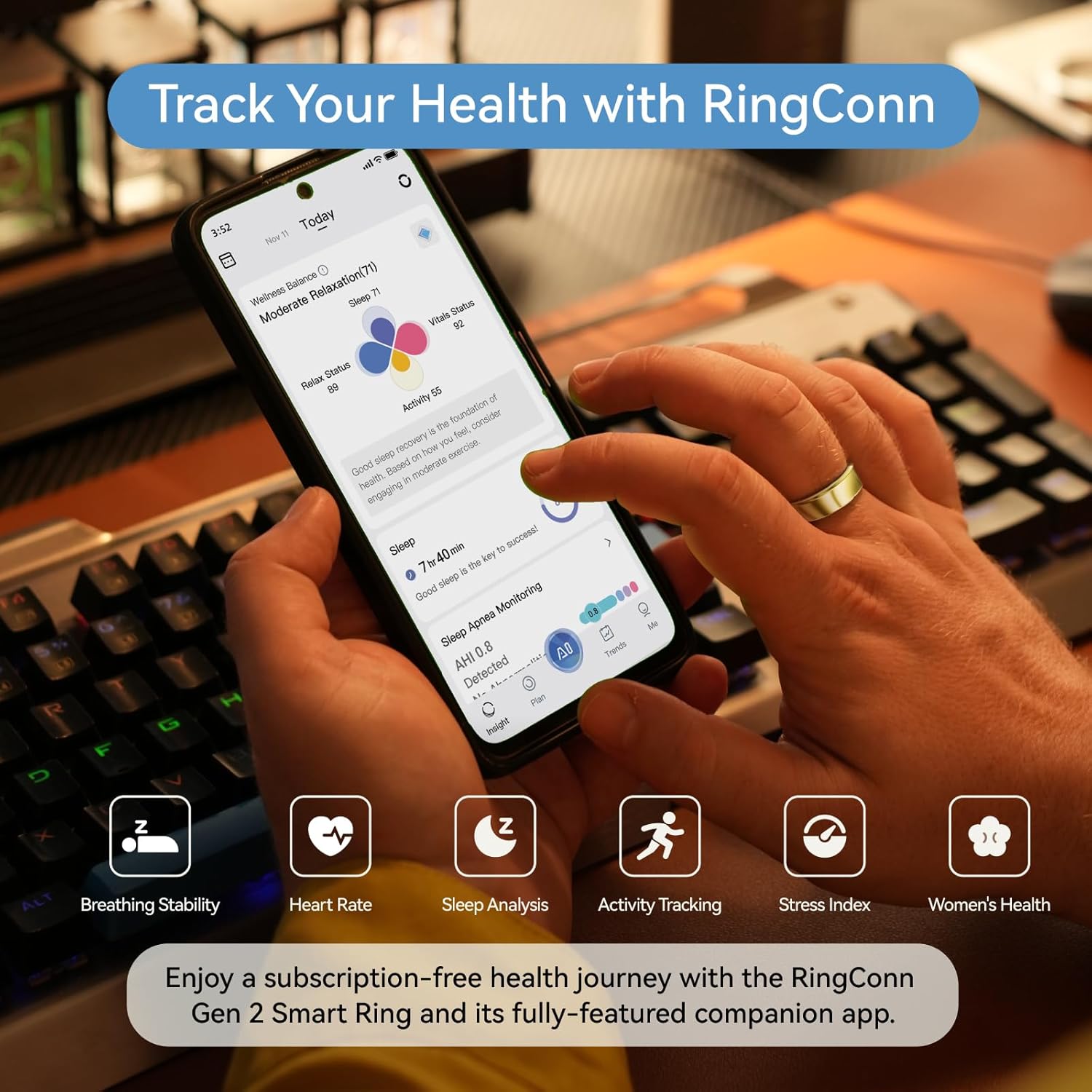
How RingConn syncing works on Android
The sync model is simple: the ring collects data passively → you open the app → Bluetooth connects → data transfers to your phone.
There is no background sync. The ring does not push data to your phone automatically. This is by design (saves ring battery), but surprises users coming from smartwatches.
Android-specific issues (that iPhone users don’t have)
Android’s aggressive battery management is the #1 cause of sync problems. Different manufacturers handle it differently:
| Phone brand | Problem | Fix |
|---|---|---|
| Samsung (OneUI) | App killed in background | Disable “Put unused apps to sleep” for RingConn |
| Xiaomi (MIUI) | Battery saver blocks Bluetooth | Add RingConn to “No restrictions” in Battery settings |
| Huawei (EMUI) | App launch restricted | Settings → Battery → App Launch → Manual for RingConn |
| Pixel (Stock Android) | Adaptive Battery pauses app | Usually fine; disable Adaptive Battery only if issues persist |
| OnePlus (OxygenOS) | Similar to Xiaomi | Battery Optimization → Don’t Optimize for RingConn |
Step-by-step fix checklist
If your RingConn won’t sync on Android, go through this in order:
Step 1: Disable battery optimization
- Settings → Apps → RingConn → Battery → “Unrestricted” or “Don’t optimize”
- This is the fix for 70% of sync issues
Step 2: Check Bluetooth permissions
- Settings → Apps → RingConn → Permissions
- Ensure “Nearby devices” (Android 12+) or “Location” (Android 11 and below) is granted
- Bluetooth on Android requires location permission — this confuses people but it’s required
Step 3: Keep the app open during sync
- Open the RingConn app, wait on the main screen
- Pull down to refresh or tap the sync icon
- Keep the screen on until sync completes (1-3 minutes for a full day of data)
Step 4: Re-pair if nothing works
- Go to phone Bluetooth settings → Forget “RingConn”
- Open RingConn app → re-pair from scratch
- This resets the Bluetooth bond and fixes corrupted connections
Google Fit integration
To sync RingConn data to Google Fit:
- Open RingConn app → Settings → Health Connections → Google Fit
- Authorize the connection
- Data will flow after each manual sync
What syncs: sleep, heart rate, steps. What doesn’t: stress, readiness, temperature (proprietary metrics).
What’s normal vs what’s broken
| Behavior | Normal or broken? |
|---|---|
| Data appears 5-10 min after opening app | Normal |
| Last night’s sleep shows up after morning sync | Normal |
| No data for 24+ hours despite syncing | Broken — re-pair |
| App crashes during sync | Broken — reinstall app |
| Heart rate shows gaps | Normal (ring samples periodically, not continuously) |
What to read next (pick your path)
If you’re deciding what to buy:
If you want cleaner data:
If workouts matter: